
Reboot the Hydrawise controller

Check power first

Check the outlet the controller plugs into. Plug in a lamp or radio to confirm the outlet itself works.
If there is no power, reset the GFCI or breaker that protects that outlet, or check the main electrical panel if needed.
If you have power, continue below at the controller.
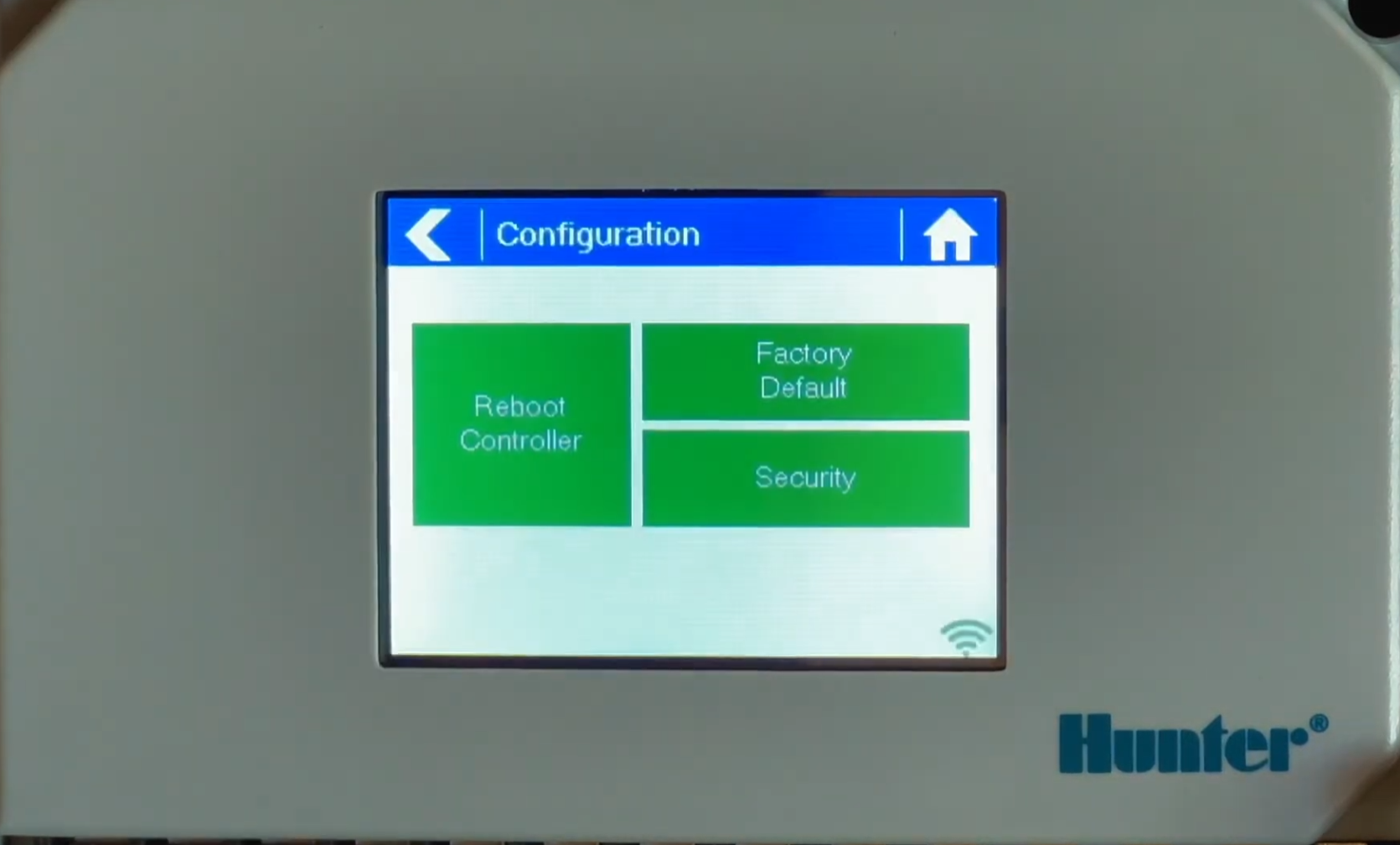
Reboot from SETTINGS

  • Press the following button: SETTINGS
  • Press Configure.
  • Now press REBOOT CONTROLLER

Watch the screen, it will go blank and the internet will try to reconnect.
When the internet connects successfully you will see “Internet connection successful” at bottom of screen within 2 minutes at most.
If you see this, go to the app on your smart phone or PC, close it out and reopen it and try to start a zone and test it out.

Hydrawise controller reboot option screen

If you still don’t see a successful connection

If you do not see “Internet connection successful” or a message such as incorrect password or no such Wi-Fi address then do the following

  • Press the following button: SETTINGS
  • Press the button “RUN WIZARD”

Select your Wi-Fi access name from the list, the old one should be highlighted
Hit OK and then enter your password
Hit OK and wait for “Internet connection successful” message

Still having issues, watch this video…..