
Entering your Wi-Fi info into the Hydrawise Controller
If you are having issues connecting to Wi-Fi or have changed your provider or router you must enter the new info into the controller.
Step 1: Select your Wi-Fi
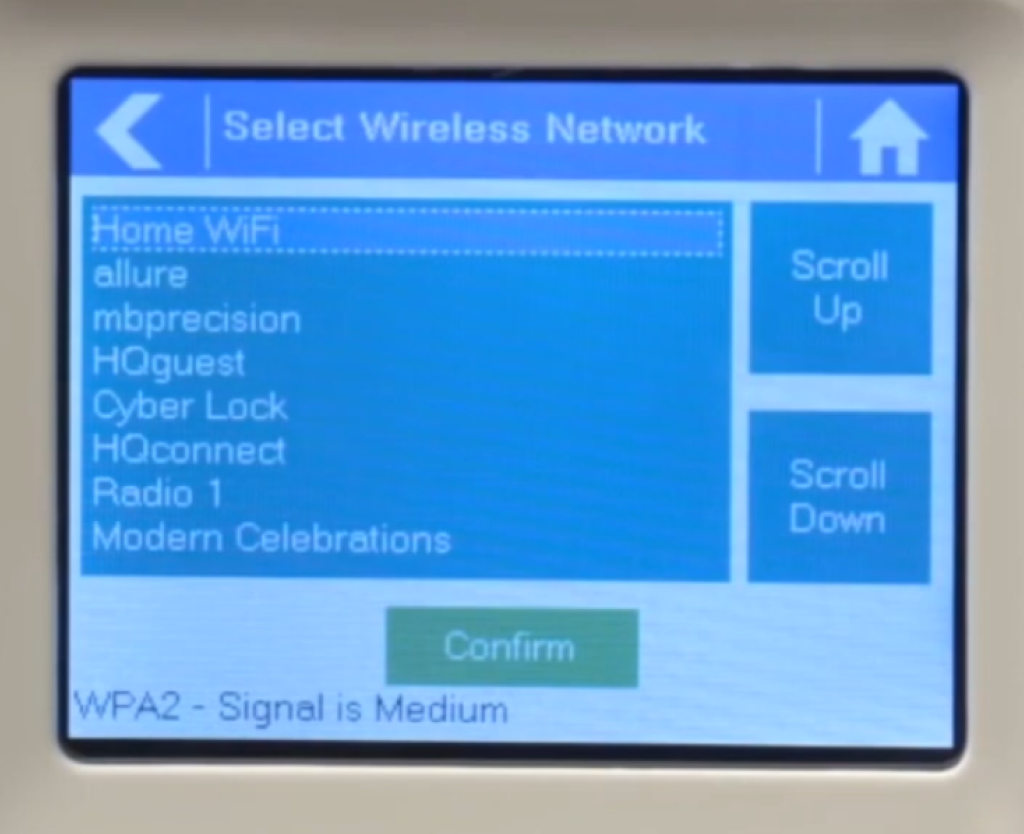
From the Home screen, tap the Settings button, then the Wireless button. Select your wireless network from the list shown on the controller display and press the Confirm button on the screen.
Step 2: Enter your Wi-Fi password
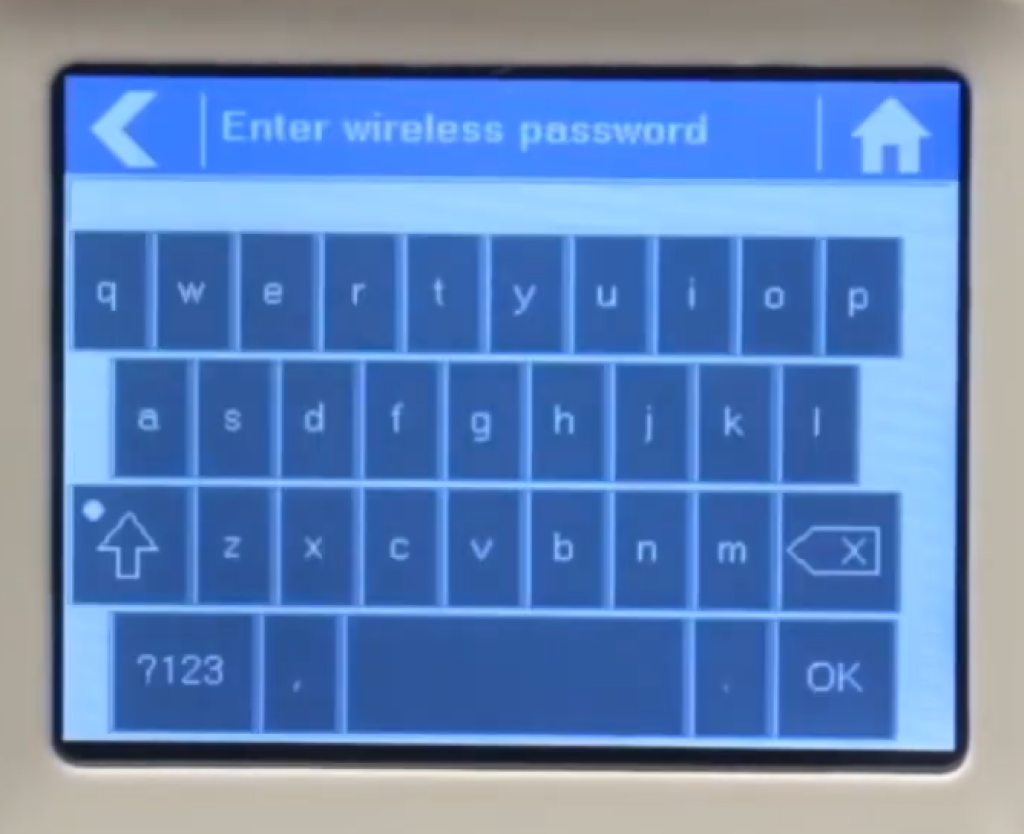
Enter your wireless password and press the OK button on the keyboard.
Step 3: Wi-Fi Confirmation Screen
When connecting to your wireless network, the Wi-Fi icon at the bottom right of the controller screen will flash. Connecting takes about 30 seconds. When successfully connected, the Wi-Fi icon will remain solid and you should see Wi-Fi connected successful.